All About Swimming with Your Apple Watch
Jan 1, 2026
Is Apple Watch Suitable for Swimming?
Yes, the Apple Watch is highly suitable for swimming.
It was designed from the start with swimming as a core activity. Whether in a pool or open water, it reliably records key swimming metrics, making it a mature and dependable device for most swimmers. Swimming is not just an add-on feature for the Apple Watch—it. It is a sport type officially supported and continuously optimized by Apple.
Water Resistance Level and Officially Supported Swimming Scenarios
Current mainstream Apple Watch models (Series 2 and later) have a WR50 water resistance rating, while the Apple Watch Ultra series has WR100. Key points:
WR (Water Resistance) indicates resistance to water pressure, not a safe underwater depth.
WR50 does not mean you can operate the watch 50 meters underwater; it is intended for everyday water activities and swimming.
Apple officially supports the following swimming scenarios:
Pool swimming (highly accurate)
Open water swimming (surface of lakes or oceans)
Apple clearly does not recommend using the watch for:
Diving, cliff jumping, or other sudden high-pressure scenarios
High-speed water sports (jet skiing, surfing)
High-temperature water environments (hot springs, saunas)
Deep diving or scuba diving (Ultra has separate depth limitations)
For normal swimming, water resistance is more than sufficient and includes design margin.
Designed with Swimming in Mind
The Apple Watch is not just “waterproof”; it is systematically designed for swimming:
Uses accelerometer and gyroscope to detect swimming rhythm
Tracks distance in pools using turns and push-offs
Supports stroke recognition, stroke count, and SWOLF metrics
Syncs swimming data to Apple Health for long-term trend analysis
This means the Apple Watch provides continuous and comparable swimming data, rather than just one-time tracking.
Reliable Performance in Pools
In standard pool conditions, the Apple Watch is one of its most stable use cases:
Distance tracking relies on pool length settings and turns
Accurately detects freestyle, breaststroke, backstroke, butterfly, and kickboard drills
Kickboard drill recognition is a feature many sports watches lack
Automatically generates pace, splits, stroke count, and SWOLF
As long as pool length is set correctly and turns are clear, the Apple Watch delivers consistent, reproducible swimming data—ideal for regular training and progress tracking.
Also Suitable for Open Water Swimming
In open water, Apple Watch primarily uses GPS for tracking:
Tracks distance, time, pace, and route
Suitable for long-distance, continuous swimming
Widely used for triathlon training and endurance swimming
Although it does not analyze stroke type in open water, it is still a useful tool for performance assessment and endurance monitoring.
Practical Choice for Most Swimmers
The Apple Watch is particularly suitable for:
Fitness enthusiasts and regular swimmers
Pool swimmers who occasionally swim in open water
Triathletes and endurance athletes
Users who want unified management of fitness and health data
It does not replace professional competitive swim watches, but in terms of accuracy, usability, and ecosystem integration, it is already well-suited for the vast majority of swimmers.
How to Swim with Apple Watch
To record accurate and meaningful swimming data, the key is not swimming faster but starting and ending workouts correctly.
Choose the Correct Swim Type
Before starting, select the appropriate activity:
Pool Swim – for standard pool environments; most common and complete mode
Open Water Swim – for lakes, oceans, or other natural waters without fixed distances
This step is critical:
Choosing open water swim in a pool will cause distance and pace inaccuracies
Choosing pool swim in open water renders the data nearly meaningless
Set the Correct Pool Length
When using a new pool, Apple Watch will prompt you to set the pool length:
Common options: 25 m, 50 m
Custom lengths are supported Apple Watch calculates pool distance based on:
Each turn and push-off
The pool length you set
If the length is set incorrectly, distance will be inaccurate. If turns are unclear, distance may be underestimated or overestimated. Tip: Check the pool length whenever you swim in a new pool.
What Happens When You Start Swimming?
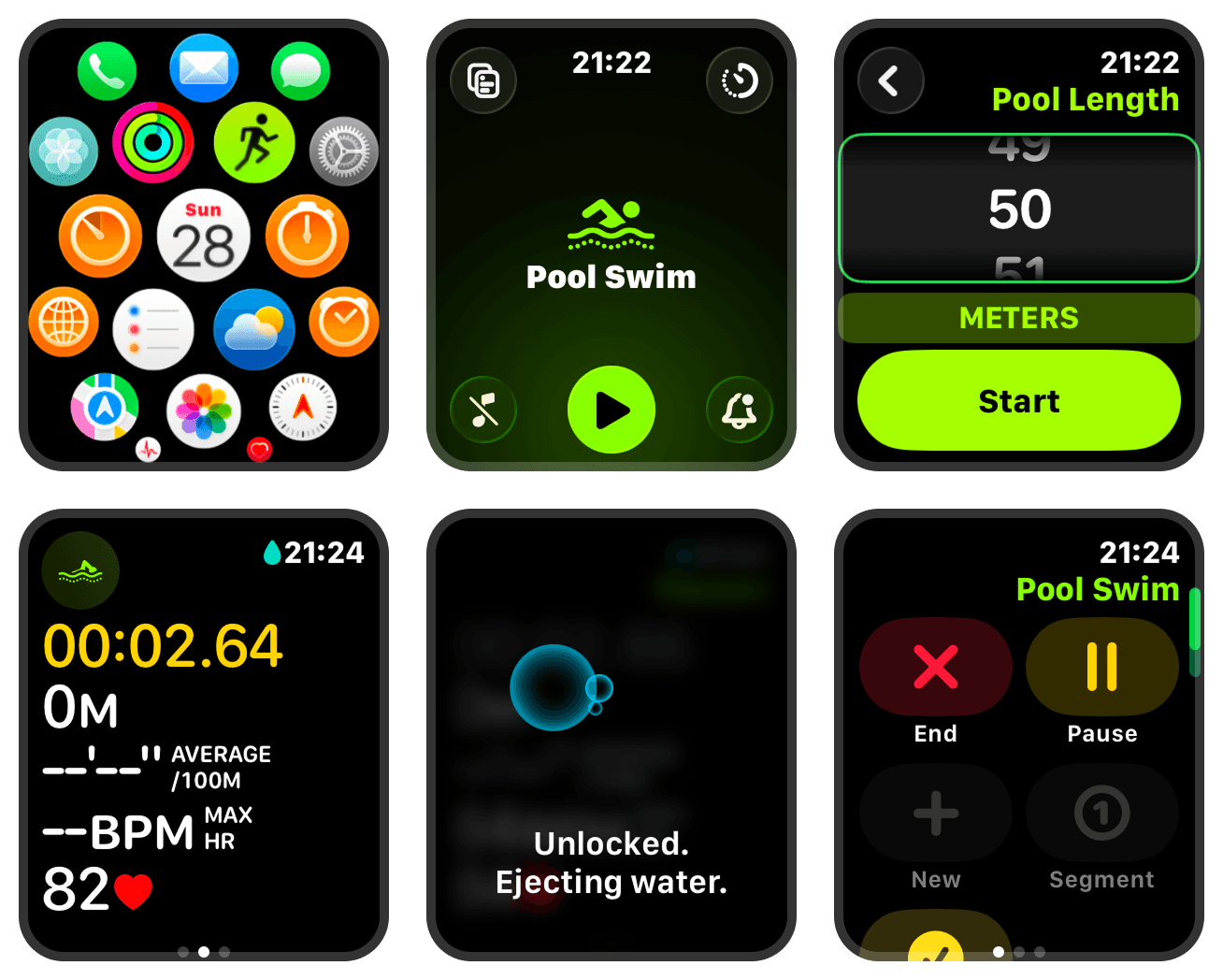
After tapping “Start Arrow” Button, Apple Watch automatically:
Enables Water Lock
Disables screen touch to prevent accidental taps
Not for waterproofing, but for operational safety
Begins background recording:
Time
Motion rhythm
Distance and pace (pool or GPS)
Heart rate (if conditions allow)
No additional action is needed—just swim.
Do You Need to Pause During Swimming?
Generally, avoid frequent manual pauses:
Short wall rests or adjusting goggles don’t affect tracking
Frequent pausing can break rhythm and reduce data continuity
Situations suitable for pausing include:
Long breaks (e.g., 1–2 minutes or more)
Leaving the pool or finishing the session
For pool workouts, Apple Watch is better for recording continuous sets rather than segment-by-segment tracking.
How to End a Swim Workout
After swimming:
Press the side button and Digital Crown simultaneously to pause
Long press the Digital Crown to exit Water Lock and eject water from the speaker
Swipe right and tap “End”
Workout data is then:
Saved immediately on the Apple Watch
Synced to iPhone in Apple Health and Fitness App
Pause Doesn’t Work?
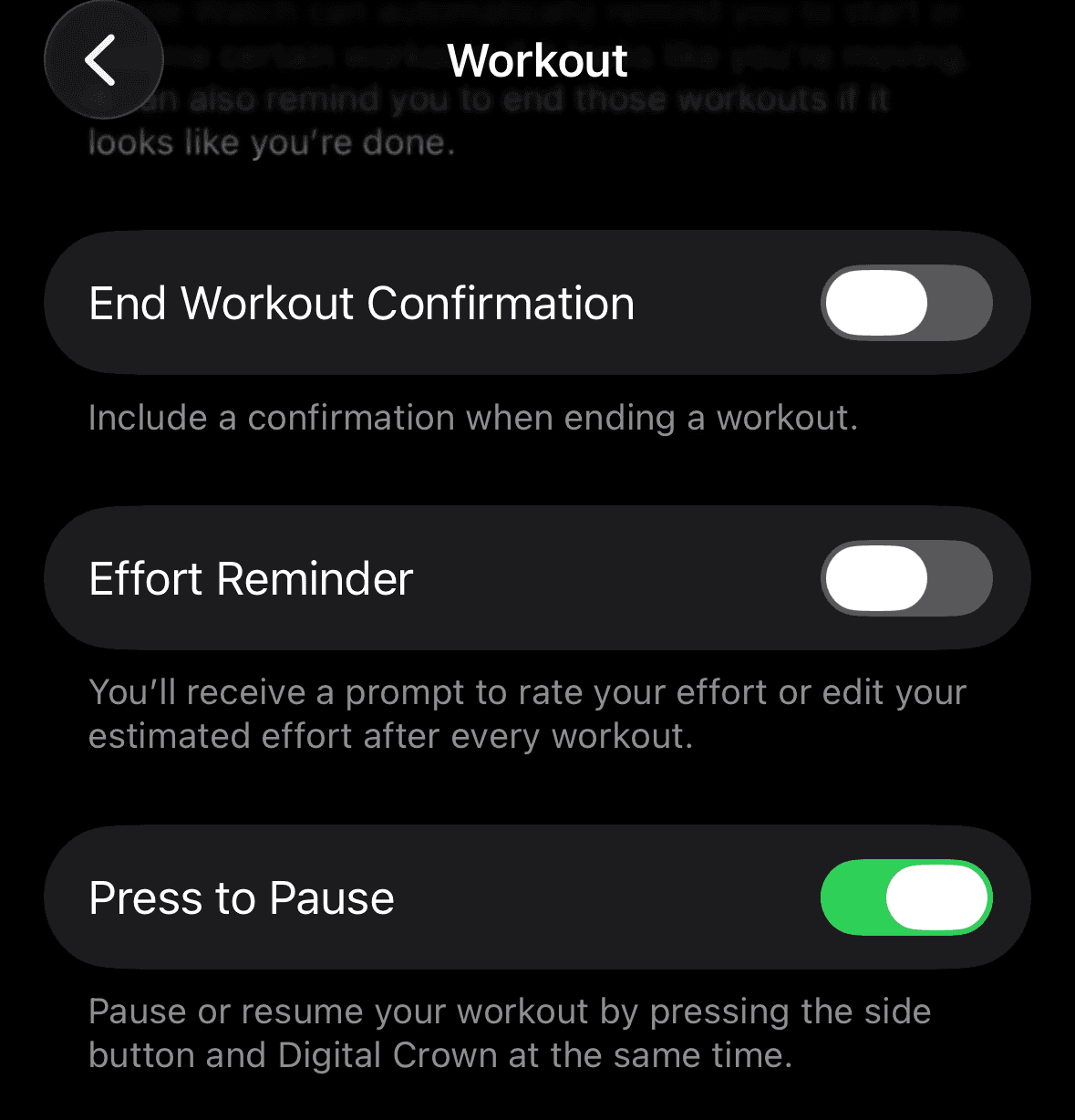
This may happen if Watch settings on the iPhone are not enable:
Open the Watch App on iPhone
Go to Workout
Enable Press to Pause
Common Beginner Mistakes
Most common and avoidable errors:
Selecting Open Water Swim in a pool
Forgetting to check or set pool length
Removing the watch mid-swim
Wearing a loose strap, causing heart rate or motion inaccuracies
Frequent pauses, fragmenting data
Recommended: use silicone strap
Avoid these mistakes, and swimming data will usually be stable and reliable.
Viewing Swim Data on iPhone
Swimming data is not limited to the watch. All data syncs to iPhone and is displayed at different levels through various apps. Understanding these is key to interpreting your swimming metrics.
Apple Health – “Data Source”
All Apple Watch swim data is written to Apple Health:
Open the Health app
Search Workout
Tap Show All Data
Apple Health’s core value:
Stores raw data
Supports long-term trend analysis
Serves as a unified data source for third-party apps
If you trust only one source, trust Apple Health.
Fitness App – “Display Layer”
The Fitness App presents the data more visually:
Typical metrics: Distance, Total Time, Avg. Pace, Calories, Laps, Pool Length, Splits, Auto Sets
Fitness App vs Third-Party Apps
The Fitness App doesn’t provide optimized swim data visualization. Dedicated swim apps (e.g., SwimNow) are recommended for enthusiasts.
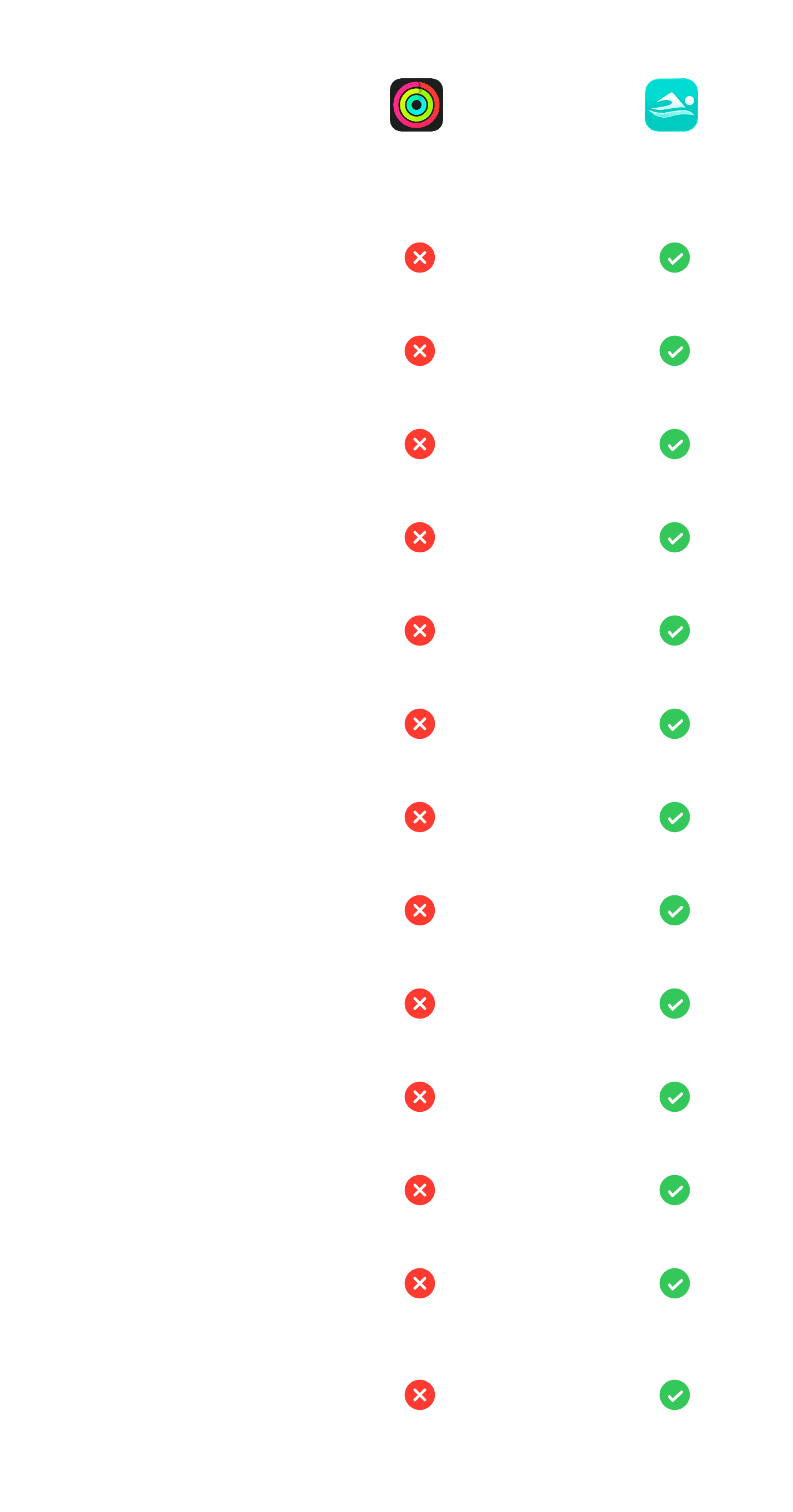
Metric Explanations
Avg. Pace – average speed per 100 m; lower = faster, consider heart rate for effort type
Fastest Pace – fastest segment; reflects short-term sprint capacity
Stroke – total strokes; fewer strokes for same distance = higher efficiency
Avg. Stroke – strokes per 100 m; lower usually = better efficiency
Stroke Rate – strokes per minute; high rate = faster pace but more effort
Heart Rate – direct measure of intensity; combine with pace and training zone
Avg. SWOLF – efficiency metric (time + strokes per length); lower = better efficiency
Splits – segmenting workouts by distance or time; helps detect pace or efficiency drop-offs
Auto Sets – Apple Watch automatically splits segments when paused ≥10 s; smallest unit for analyzing technique and fitness